Sunday, February 9, 2014

Setting up automatic Wireless Connection for Raspberry Pi

Well, like many others I also bought Raspberry pi (I think a year ago) but didn't do much with it. I decided to do a Garage door opener project and bought Relay & USB Wireless adapter (http://www.amazon.com/gp/product/B003MTTJOY/ $9.99). I started fresh with Rpi new install from http://www.raspberrypi.org/downloads and used "NOOBS (offline and network install)" to install Raspbian OS. Then enabled remote SSH so that I can connect to it from my Mac and I can use the USP ports for attaching Wireless receiver. I have used tightvncserver & tightvnc viewer java client to RDP into Rpi.

From there launch "WiFi Config", and select "scan".


 It will list all available networks and from that select your network and "Double Click" on it. It will bring another window with settings preselected, you just need to enter the password and hit "add"


This will automatically save your wireless network profile to "/etc/wpa_supplicant/wpa_supplicant.conf" file.
You can as well list the contents using 
$sudo cat /etc/wpa_supplicant/wpa_supplicant.conf

--------------------------------------------------
pi@raspberrypi ~ $ sudo cat /etc/wpa_supplicant/wpa_supplicant.conf
ctrl_interface=DIR=/var/run/wpa_supplicant GROUP=netdev
update_config=1

network={
ssid="Your SSID Name"
psk="Your SSID Password"
proto=RSN
key_mgmt=WPA-PSK
pairwise=CCMP
auth_alg=OPEN
}
-------------------------------------------------------------------

At this time, you can unplug your ethernet cable and still you will be able to access internet through wifi adapter. However if you restart your Rpi, your Wifi connection will not start automatically.
Follow the steps below to enable the wireless connection to startup automatically.


Note: You can't edit interfaces file directly since it is owned by root. You have to use sudo for the same

Either use nano or vi editor to match the content similar to mine

pi@raspberrypi ~ $sudo nano /etc/network/interfaces
or
pi@raspberrypi ~ $sudo vi /etc/network/interfaces
-------------------------------------------------------------------------
auto wlan0

iface lo inet loopback
iface eth0 inet dhcp

allow-hotplug wlan0
iface wlan0 inet dhcp
wpa-conf /etc/wpa_supplicant/wpa_supplicant.conf
iface default inet dhcp
-------------------------------------------------------------------------

Next edit wpa_supplicant.conf in the sameway

pi@raspberrypi ~ $sudo nano /etc/wpa_supplicant/wpa_supplicant.conf
or
pi@raspberrypi ~ $sudo vi /etc/wpa_supplicant/wpa_supplicant.conf

-------------------------------------------------------------------------
ctrl_interface=DIR=/var/run/wpa_supplicant GROUP=netdev
update_config=1

network={
ssid="Your Network SSID"
psk="Your Network Password"
proto=RSN
key_mgmt=WPA-PSK
pairwise=CCMP
auth_alg=OPEN
}

-------------------------------------------------------------------------
Note: proto, keymgmt can be different based upon your network security.
You can use the following blog for that reference, it's kind of the same blog, but didn't work for me.

Now you can restart your pi and enjoy it.

PS: I have used the following blog to setup my wifi, but neither did work.
Hence wrote this blog to show what worked for me.

Wednesday, December 4, 2013

Geo Coding address from Oracle

Have you ever dreamed about Geo Coding an address using Google Geo Location services through Oracle, your dream has come true.


WITH GEOCODE AS(
    SELECT UTL_HTTP.REQUEST('http://maps.googleapis.com/maps/api/geocode/xml?address='|| replace('1 Main St,Trumbull,CT-06611',' ','+') || '&sensor=false') GEO_XML
     FROM DUAL
)
SELECT EXTRACTVALUE(XMLTYPE(GEO_XML),'/GeocodeResponse/status') STATUS
     , EXTRACTVALUE(XMLTYPE(GEO_XML),'/GeocodeResponse/result[position()=1]/geometry/location/lat') LATITUDE
     , EXTRACTVALUE(XMLTYPE(GEO_XML),'/GeocodeResponse/result[position()=1]/geometry/location/lng') LONGITUDE
     , GEO_XML
  FROM GEOCODE
WHERE EXTRACTVALUE(XMLTYPE(GEO_XML),'/GeocodeResponse/status') = 'OK'


Warning 1: You have to substitute spaces with '+' in the address, otherwise the request will fail.

Warning 2: Some time Google may return bigger XML, however UTL_HTTP.REQUEST will return only the first 2000 characters and it will thrown an error. To over come this issue, replace UTL_HTTP.REQUEST with my dirty version of Oracle CURL function(See my prior blog)

Warning 3: Read the licensing requirements before using Google geocoding services, you might need an business license to use this service.

CURL implementation in Oracle

Have you ever wondered, you wish you had an Oracle CURL function, no problem, your wish is fulfilled.
PS: This will only work for text files and you can one for binary files too.

CREATE OR REPLACE FUNCTION CURL(i_URL VARCHAR2) RETURN CLOB IS
    -- HTTP Portion
    l_http_request   UTL_HTTP.req;
    l_http_response  UTL_HTTP.resp;
    l_clob           CLOB;
    l_text           VARCHAR2(32767);
BEGIN
    -- Initialize the CLOB.
    DBMS_LOB.createtemporary(l_clob, FALSE);
    -- Make a HTTP request and get the response.
    l_http_request  := UTL_HTTP.begin_request(i_URL);
    l_http_response := UTL_HTTP.get_response(l_http_request);
    -- Copy the response into the CLOB.
    BEGIN
        LOOP
            UTL_HTTP.read_text(l_http_response, l_text, 32766);
            DBMS_LOB.writeappend (l_clob, LENGTH(l_text), l_text);
        END LOOP;
    EXCEPTION  WHEN UTL_HTTP.end_of_body THEN
        NULL;
    END;
    UTL_HTTP.END_RESPONSE(l_http_response);

    RETURN l_clob;

END CURL;
/


Thursday, June 13, 2013

Spooling output in SQL PLUS

I am not a big fan of SQLPLUS, typically use GUI tools to access Database. If you happen to use SQLPLUS for spooling output/cretaing file out of SQL Query to a file, here is the code snippet

set echo off;
set linesize 600
set newpage 0
set trimspool off
set heading off;
set tab off;
set serveroutput off;
set termout off;
spool output_file.dat;

< SQL GOES HERE>;

spool off;

quit;

Monday, February 25, 2013

Mac Security-Running selected external applications

Mac Mountain lion has a new security feature(actually lot of features) which prevents running apps downloaded outside of Mac app store. If you try to run those apps you will get a warning something like this. For example, I have downloaded SQL Developer from Oracle.
When ever this happens everyone will Google it and look for a solution to disable this feature. I did the same thing but stumbled upon a new way of running those apps without changing the default security setting. Thanks to http://www.intego.com/mac-security-blog/new-security-features-in-os-x-mountain-lion/ You just need to hold "Control" key, right click on the app and select "Open. This time you will get a slightly different warning. Select Open and you need to enter Admin credentials to make it effective. That's it. Now you can open SQL Developer and it won't bother you again with that security message.


Tuesday, January 15, 2013

Why Windows 7 is better than Windows 8

In other words,  why Fidelity Windows 7 gadget  is better than Windows 8 finance app with Live tiles.

Dow Jones index is shown in red which kind of indicates it's down in Fidelity app.


 What's the point in having live tile, if it can't paint the picture using proper color. Why is it in green when the index is down in Windows 8.


Thursday, January 10, 2013

Mapping multiple schemas to Apex Workspace

Unfortunately Apex Admin application doesn't let you map more than one schema to the workspace. However I had a requirement to map 500 schema's to one single workspace (For the creation of training application for 500 Users). APEX_INSTANCE_ADMIN package came in handy and I did it using PL SQL.
Here is how you do it.

SQL> APEX_INSTANCE_ADMIN.ADD_SCHEMA(
p_workspace  => 'MY_WORKSPACE', p_schema => 'MY_SCHEMA');

PS: You can use the same package REMOVE_SCHEMA to remove the mapping as well. Also SYS & SYSTEM schema's cannot be mapped using the same due to security restriction.

Reference to Oracle documentation: http://docs.oracle.com/cd/E37097_01/doc/doc.42/e35127/apex_instance.htm

Thursday, September 20, 2012

Get most out of your Wireless Router

I have Linksys E2500 (Cisco) router at home and Optimum is my ISP. It's a dual band  router with Wireless N support and can server upto 300Mbps. I just left my Wireless Router settings to default other than just protecting my SSID. I don't abuse my ISP by downloading Gigs of data or by hosting bit torrent. Still I hardly get 10-15 Mbps download speed with my ISP.

I do have some basic understanding about Networking but never paid attention to it on my Router. I was just Googling to find ways to improve performance and I can't believe how effective you can make your router with some simple tweaks. I thought it is worth sharing and listed some of the tweaks I did on my Router. Again these are all specific to my Router Linksys E2500, however you can apply the same concepts on your Router.
Below is screenshot f my Wireless Router Setting.


#1: Switch to "Manual" configuration mode from Basic Wireless Setting (May be different for your Router)

#2: Use different SSID for 2.4 GHz & 5.0 GHz. If you keep the same name you have no idea which frequency your device is using. 5.0 is better than 2.4, however not all your device can connect to 5.0. For example iPhone 4 & 4S can connect to "Wireless N" only on 2.4 GHz. iPhone 5 can connect to "Wireless N" on both 2.4 GHz & 5.0 GHz. All iPads (Original, 2 & new) supports "Wireless N" on both 2.4 GHz & 5.0 GHz.

#3: If your Router supports "Wireless N" mode change the settings from "Mixed" to "Wireless N". iPhone 3G & 3GS doesn't support "Wireless N". If you still own one of these you should leave the Wireless mode to "Mixed" at least for 2.4 GHz. You can have different modes for 2.4 GHz & 5.0 GHz and that the reason you should use different SSID name.

Read "How to get the most out of your dual band router" from the PDF below. It has ton of information.

Also the following link describes the difference between a, b, g and n networks.

#4: Switch the devices that support 5.0 GHz/ Wireless N to the respective SSID to get the most out of it. In my case I switched to 5.0 GHz/Wireless N network on my laptop, Macbook pro, iPad.

#5: My manual suggests to use "WP2-Personal" security for "Wireless N" better performance.

Wednesday, September 19, 2012

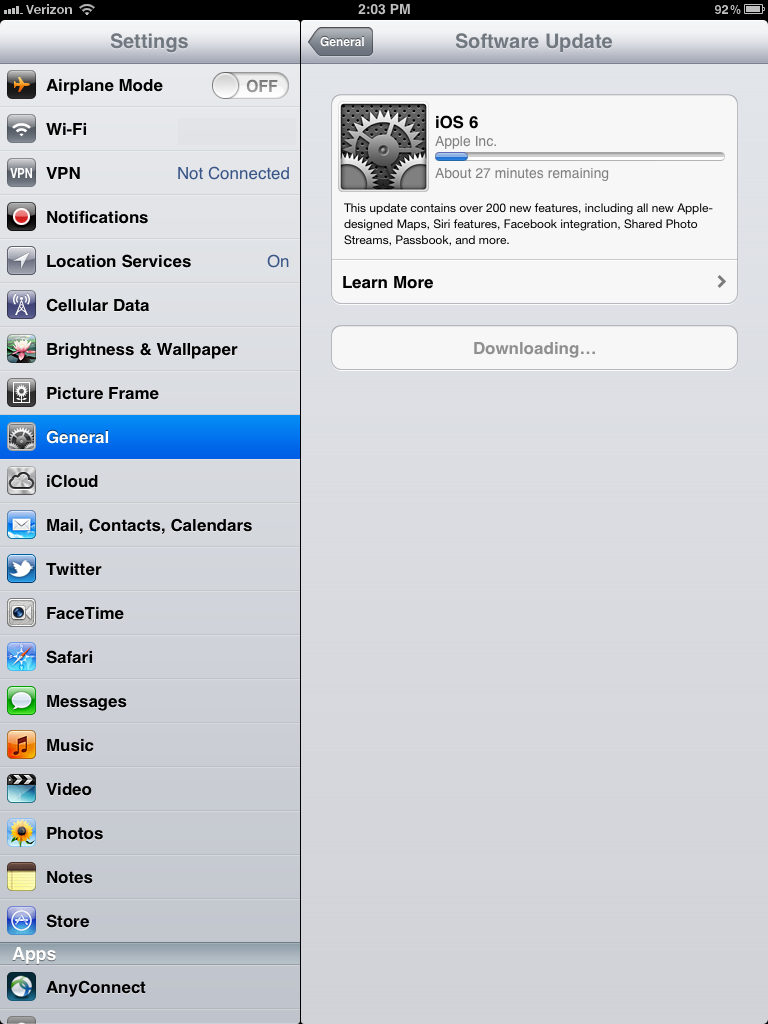
iOS 6.0 is out

Go ahead and try it from your iPhone/iPad. It's not yet posted on the Apple website.
Excited with all the features of iOS 6.0 except Map. Sorry Apple, you screwed up Map.

It took 30 minutes for my iPad 3G to update to iOS 6.0. Whats amazing is after the update, still my apps are  in the same suspended state.


Thursday, August 30, 2012

Apache Virtualhost URL Rewrite - Keys to Success

Have you ever tried to make Apache URL Rewrite to work at the Virtualhost level and felt like you are banging your head on the wall, don't think you are alone, I am with you.
After lots and lots of search,  read through documentation, trial and error, I  finally got it to work. This configuration will work with a Reverse Proxy Server in the front.  Also if Apache & Reverse Proxy Servers are listening in different port (Example Reverse Proxy on port 80 and Apache on port 8080), use the Apache listening port on your VirtualHost configuration.

Always start with  "Apache -S" (In some cases httpd -S) option. This will list all the issues found in httpd.conf file. Actually I found couple of issues with my httpd.conf file, in fact Apache was up and running with those issues and driving me crazy.

For the Jump Start just copy paste the following lines into to your https.conf file and JUST change the domain name.


NameVirtualHost *:80
<VirtualHost *:80>
ServerName mydomain.com
DocumentRoot "c:\www\mydomain.com"
# Following two lines are handy for debugging, but don't do it on your production machine
RewriteLog "C:\www\temp\rewrite.log"
RewriteLogLevel 9
RewriteEngine on
# Put all your ReWrite rules over here for mydomain.com
RewriteRule index.html$ welcome.html [NC,L]
</VirtualHost>
<VirtualHost *:80>
ServerName myotherdomain.com
DocumentRoot "c:\www\myotherdomain.com"
RewriteEngine on
# Put all your ReWrite rules over here for myotherdomain.com
RewriteRule index.html$ welcome.html [NC,L]
</VirtualHost>


Now lets talk about all the mistakes you can do (To be precise I did)

Mistake #0:
Trying to debug without running "Apache -S" (In some cases httpd -S) command. You must resolve all the issues listed by that command, before you start think about why is not working.

Mistake #1:
<VirtualHost *:80> element alone is not sufficient to trigger URL Rewrite and you need NameVirtualHost *:80 prior to that.

Mistake #2:
NameVirtualHost mydomain.com:80 is incorrect. Just go with *:80

Mistake #3:
What ever you put in after NameVirtualHost should be exactly repeated in every VirtualHost element.
Each server should be specified in ServerName attribute and not in VirtualHost
For example


NameVirtualHost *:80
<VirtualHost mydomain.com:80>
</VirtualHost>

<VirtualHost myotherdomain.com:80>
</VirtualHost>


is incorrect.
Correct way to do it is


NameVirtualHost *:80
<VirtualHost *:80>
ServerName mydomain.com
</VirtualHost>

<VirtualHost *:80>
ServerName myotherdomain.com
</VirtualHost>


Mistake #4:
No port to be specified in the ServerName
For example

<VirtualHost *:80>
ServerName mydomain.com:80
</VirtualHost>
is incorrect.

Right one is

<VirtualHost *:80>
ServerName mydomain.com
</VirtualHost>

Mistake #5:
All VirtualHost element must have at least ServerName  & DocumentRoot in it. I will add "ReWriteEngine On" to that.

For Example

RewriteEngine on  # Globally Turning it on has no impact on VirtualHost

<VirtualHost *:80>
ServerName mydomain.com
DocumentRoot "c:\www\mydomain.com"
RewriteRule index.html$ welcome.html [NC,L]
</VirtualHost>


won't do any URL ReWrite.
Instead you must put that in inside the VirtualHost


<VirtualHost *:80>
ServerName mydomain.com
DocumentRoot "c:\www\mydomain.com"
RewriteEngine on  # You need it here.
RewriteRule index.html$ welcome.html [NC,L]
</VirtualHost>

Mistake #6:
This may sound sillly, but I am sure someone will do it.
Putting  "."(dot) instead of ":" (colon) between * and 80.
*.80 is incorrect
*:80 is correct.
This may happen especially if you use IP address instead of star.


Still reading my blog, ok then, let me drive you crazy.
Lets talk about Apache listening on multiple ports and settingup VirtualHosts.

Lets say your Apache is listening on Port 80 as well as 8080 and want to setup Virtual host.
Here is the right way to do it.

NameVirtualHost *:80
NameVirtualHost *:8080

<VirtualHost *:80 *:8080>
ServerName mydomain.com
DocumentRoot "c:\www\mydomain.com"
RewriteEngine on  # You need it here.
RewriteRule index.html$ welcome.html [NC,L]
</VirtualHost>

NameVirtualHost *:80 *:8080  #  IS INCORRECT

Well it took two days for me solve this problem. I would really appreciate if you drop a comment, whether it was helpful solving your problem or not. Especially if you can mention the Mistake # that would be great, of course you can be anonymous.